
Set language & audio options for evaluation school level
- Goto Account Settings by selecting your name from the top right, select Account Settings from the sub menu.
- The available evaluations will be displayed after the Billing Detail section. Each evaluation will have its own set of settings.
Set language & audio options at classroom level
- Goto the classroom you are accessing (If you only have access to one classroom, you can skip this step)
- Goto Classroom Settings by selecting your name from the top right, select Classroom Settings from the sub menu.
Setting Descriptions
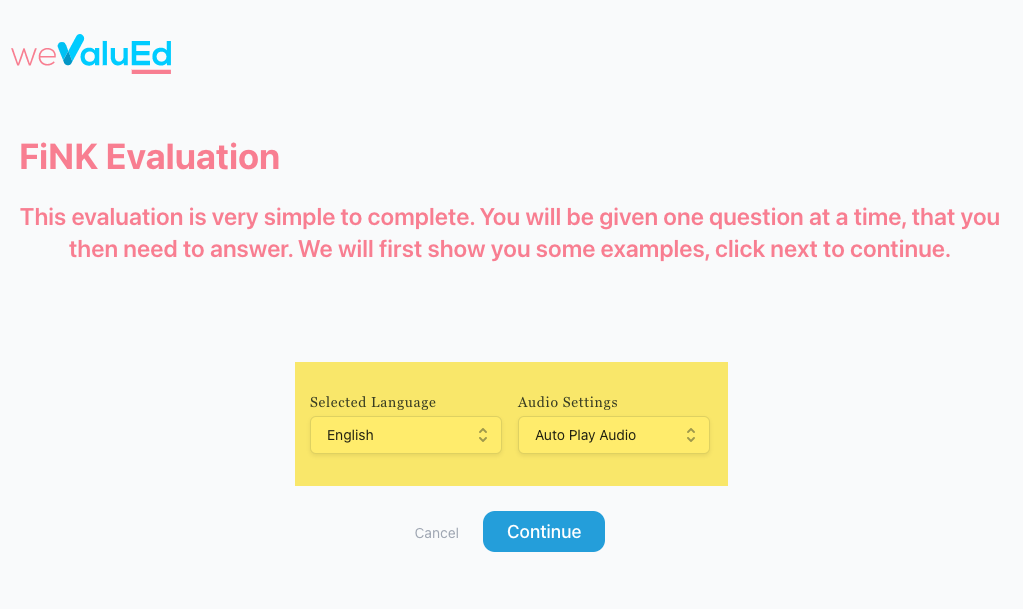
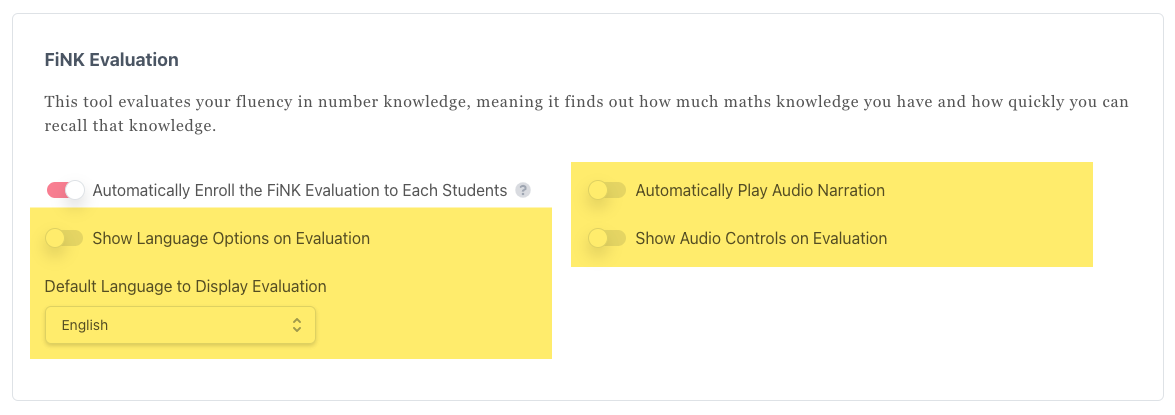
| Show Language options on Evaluation | Show the language selection box and audio settings select box at the start of an evaluation. |
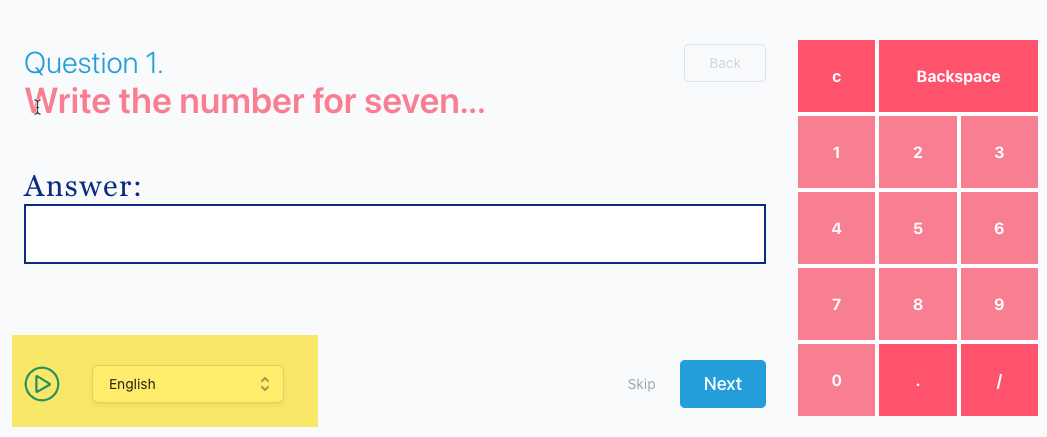
| Automatically Play Audio Narration | Automatically play the question on each question slide. When off, the user needs to push play on the audio control (if enabled, otherwise, audio will not be playable) |
| Default Language to Display Evaluation | If an evaluation has more than one audio language, you are able to select the default start language. |
| Show Audio Control on Evaluation | Allow the play, pause or replay button to display on the evaluation tool. |