Enabling a Classroom Portal
By default, a school administrator can enable or disable a individual school portal by navigating to the classroom page found on the main navigation bar. Select the classroom you wish to edit (1) and the classroom editor will appear. You can enable the classroom portal (2),when enabled, options 3,4 & 5 will appear.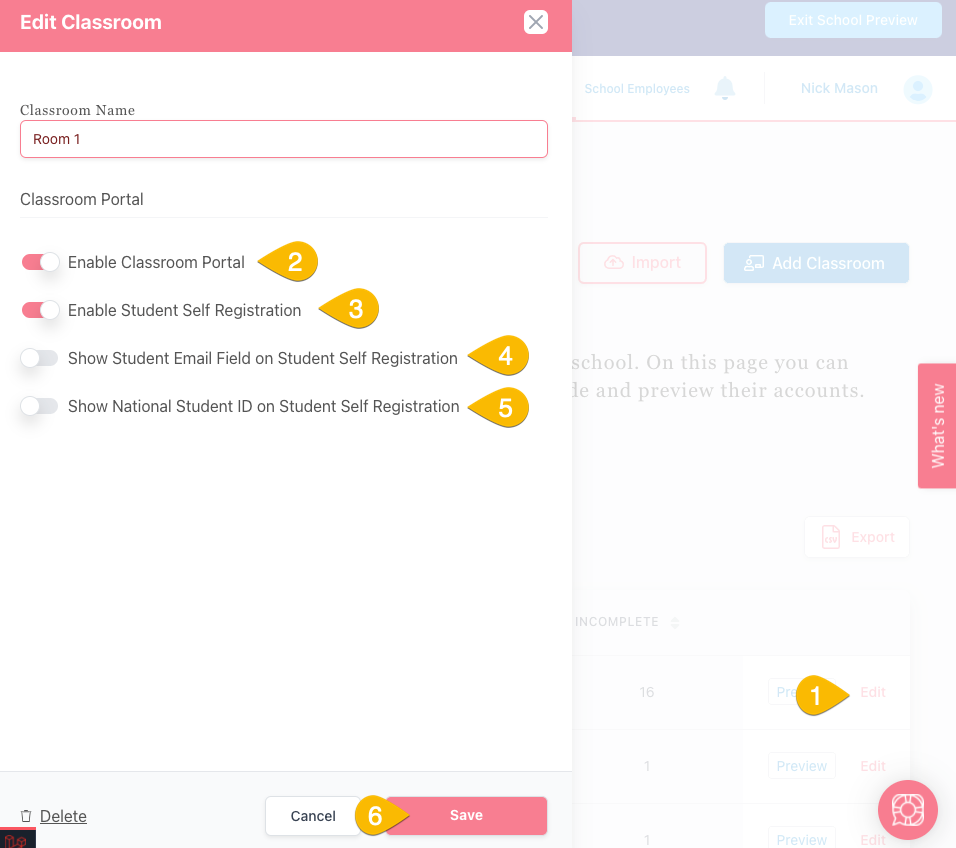
Enabling Student self registration will enable the classroom registration feature (See Method 2: Self Registration below). When this option is toggled off, the list of students is enabled (See Method 1: classroom portal below). Where self registration has been enabled (3), options 4 & 5 will appear. Use these options to display Student Email and Student ID on the self registration pages.
Accessing a Classroom Portal
As a school administrator, you can access classrooms from the main navigation bar. If classroom portals has been enabled for the individual classroom, a unique 6 alphanumeric code will appear (1). Click the copy to clipboard icon (2) to copy a direct URL that automatically logs in to the portal.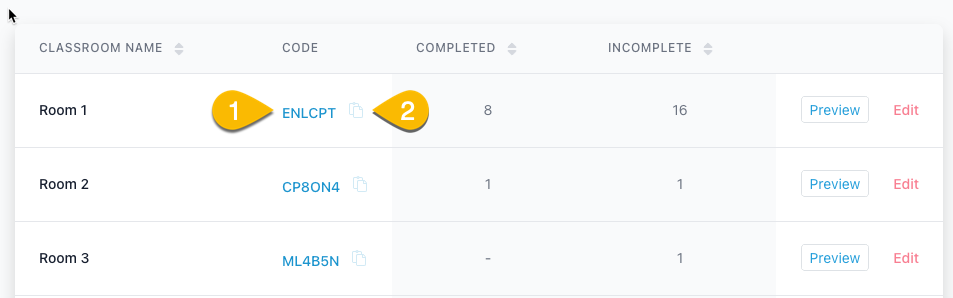
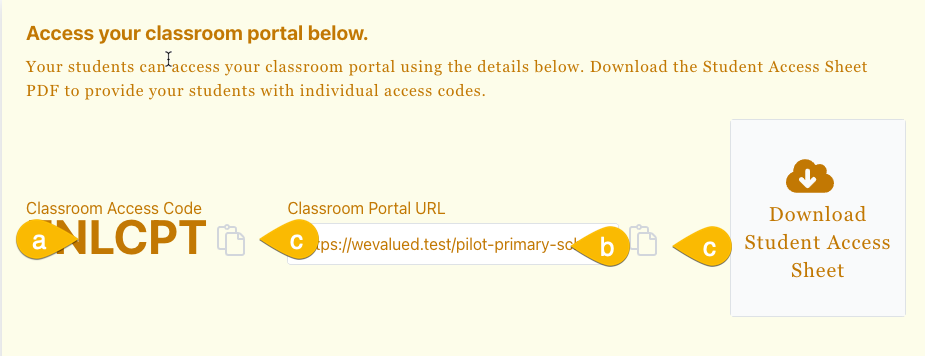
Teaches can view their portal from their dashboards. Both the Portal Access code (a), portal url (b) and copyto clipboard (c) are available here.
Method 1: Classroom Portal
Provides access via a direct link or via a unique 6 character access code to a list of students. A teacher then can rely on the student to select their name from a list of students, upon selecting their name, they are redirected to their own student portal. When a student clicks log out, they are redirected back to the classroom portal for the next student to repeat.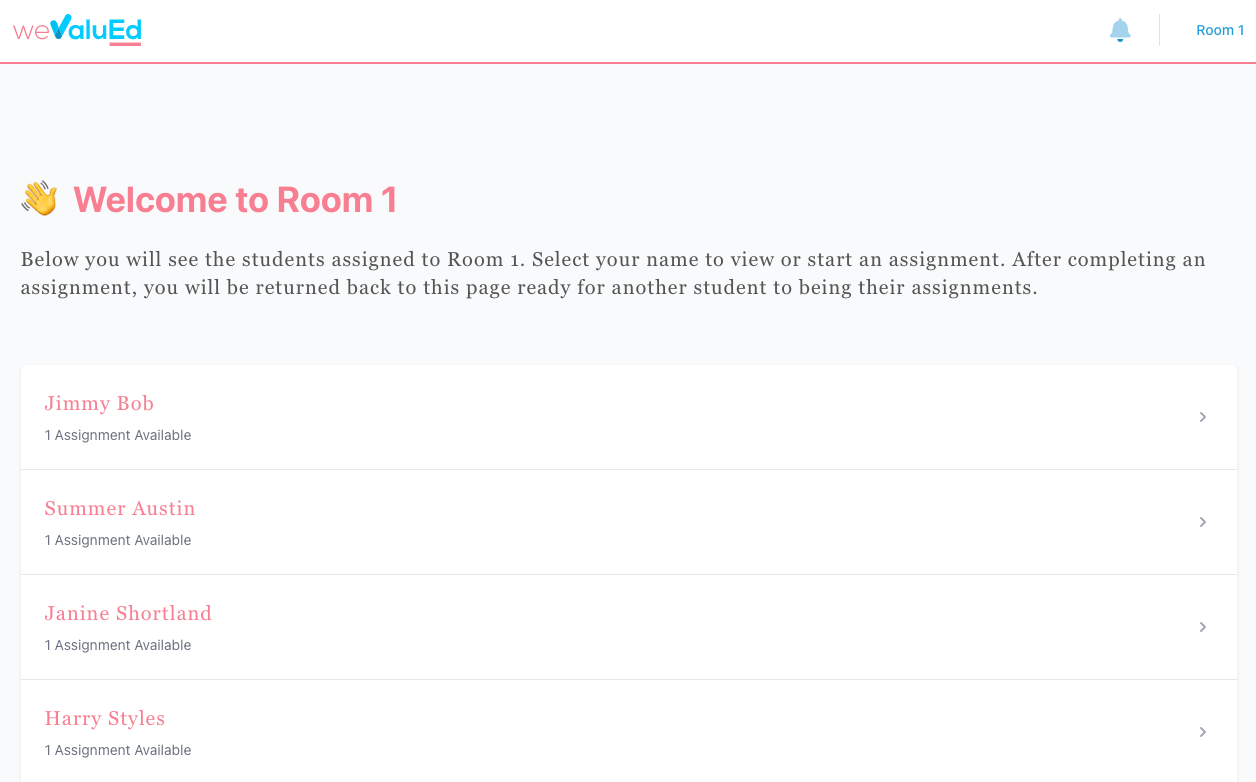
Method 2: Self Registration
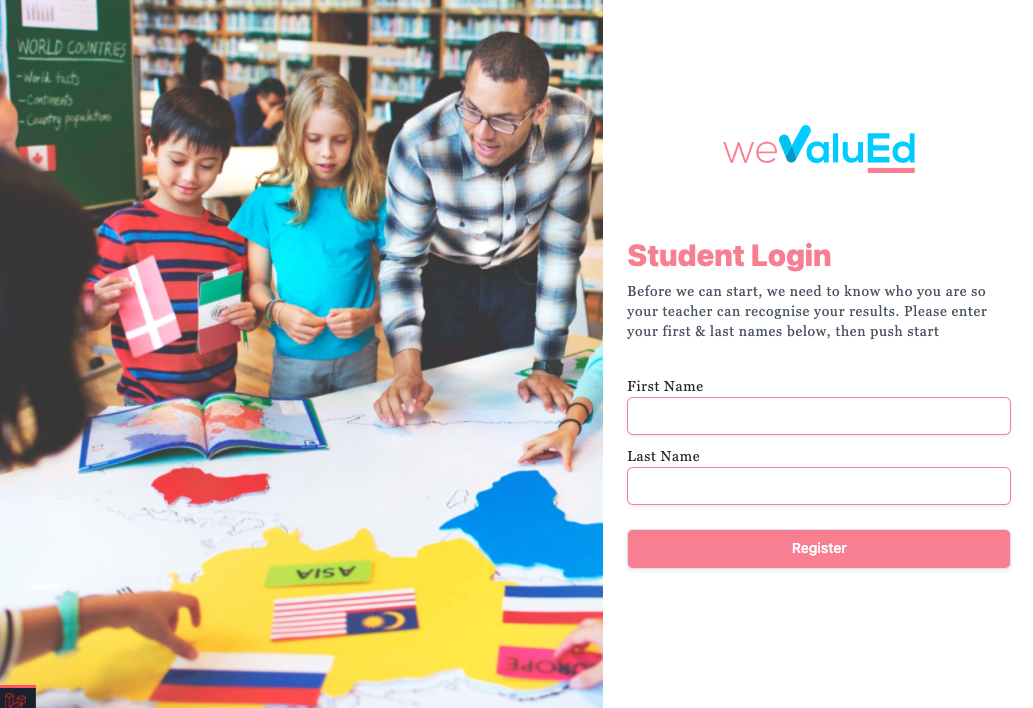
Provides access via a direct link or via a unique 6 character access a student registration page. A student can enter their first name, last name and optionally an email field or student ID field (Enabled from the classrooms settings). After a student completes their details, they are automatically enrolled to the classrooms programmes. The student is automatically redirected to their student portal.