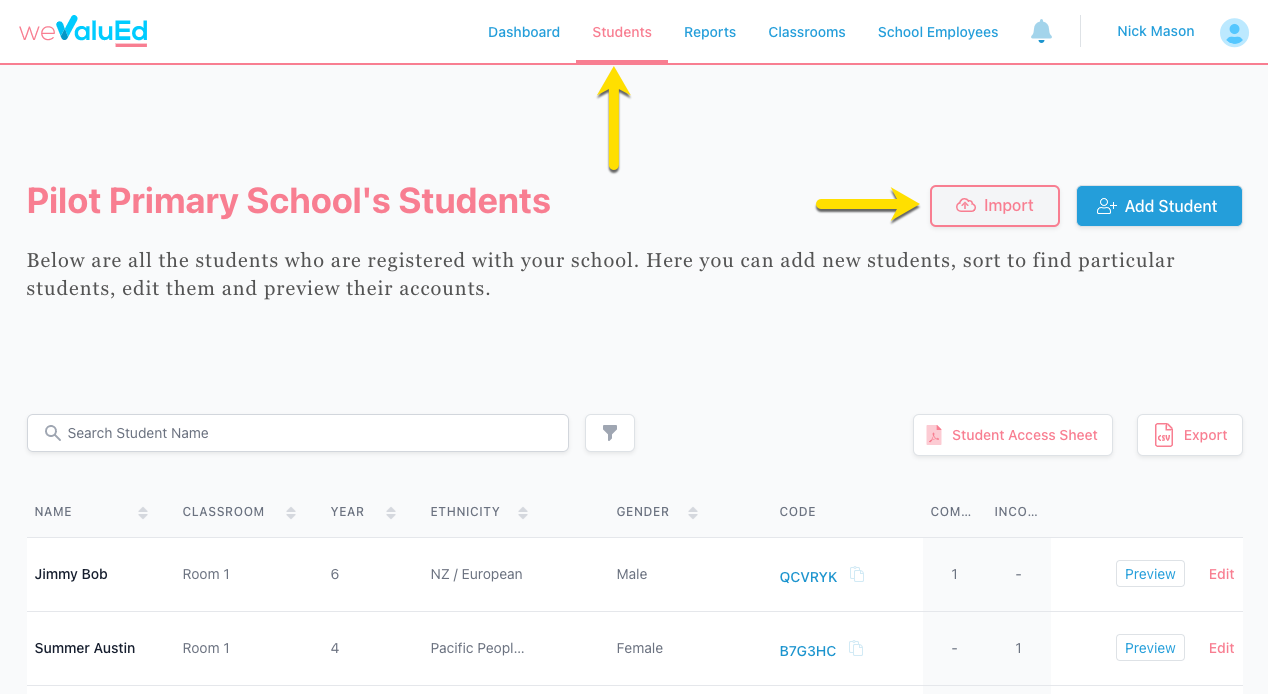
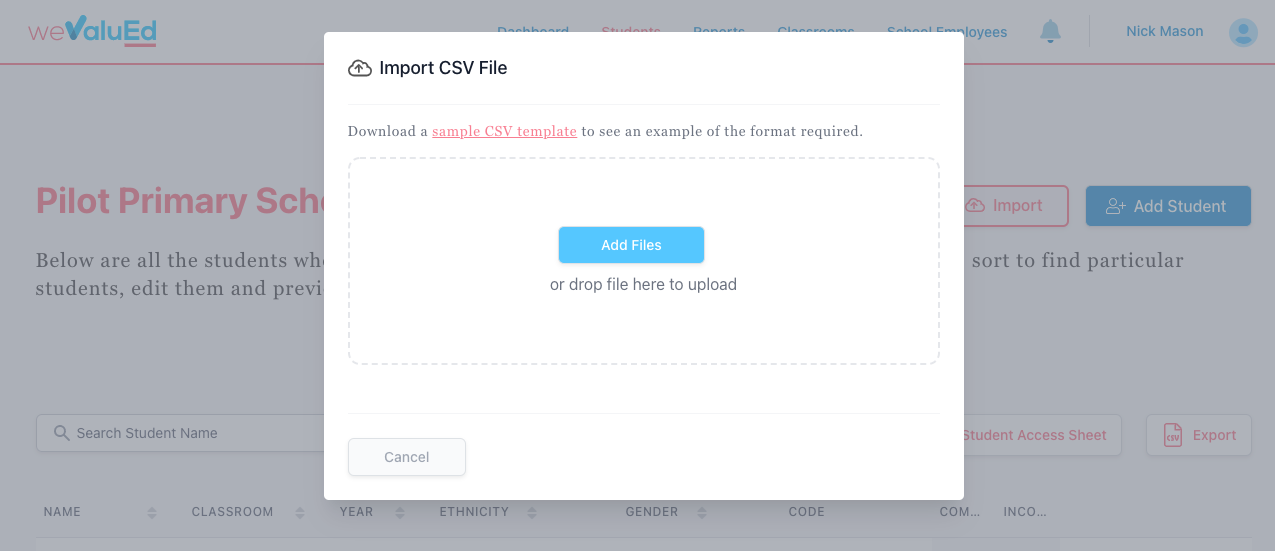
A modal dialogue will appear, click the blue Add Files button to open your system dialogue and navigate to the file you wish to import, or simply drag the file directly onto the modal dialogue. Only .csv files will be accepted, if you have a .xlsx file, please first convert this file by going into Microsoft Excel, selecting Save As and saving as a .csv file (Comma-seperated Values).
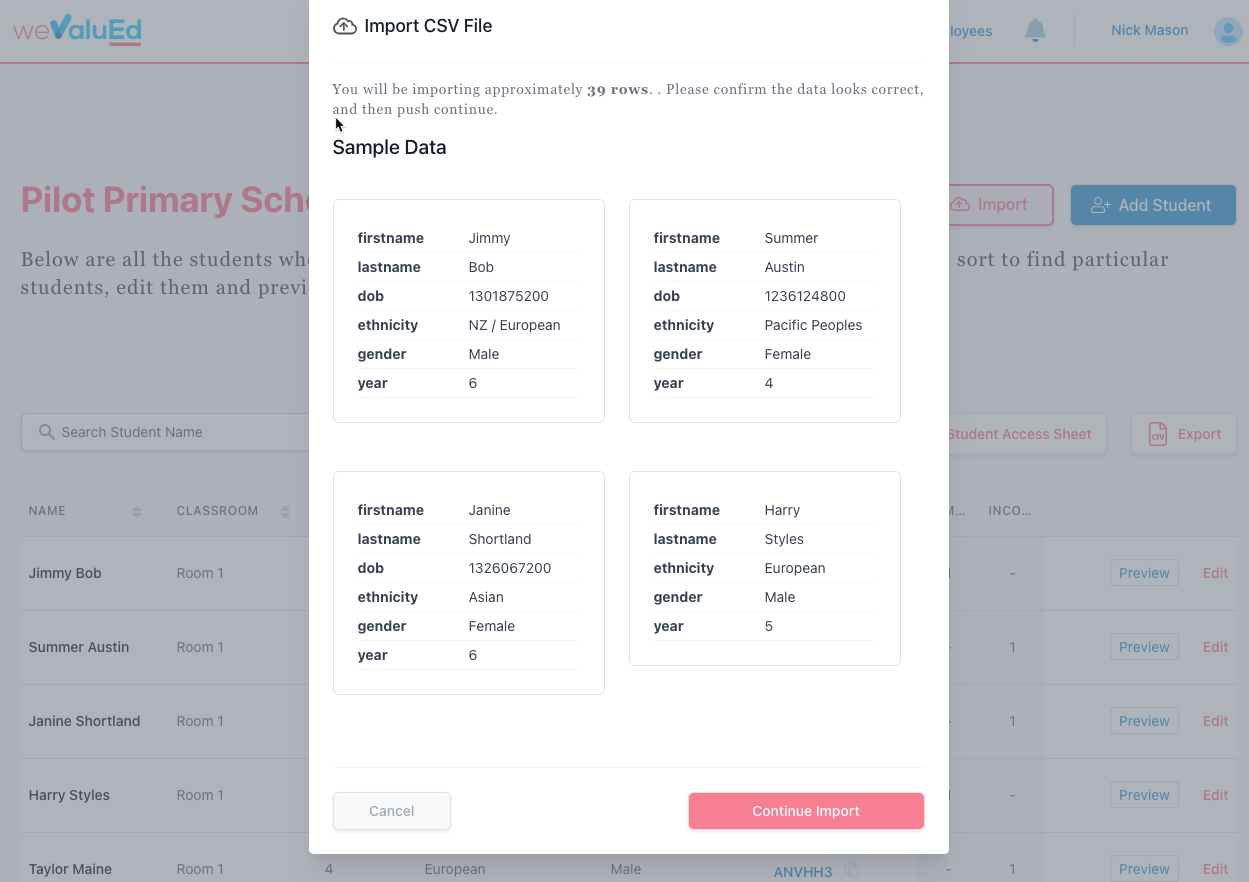
Once you have selected the file you wish to import, your file will import. A sample of the first four rows will be display for you to verify before continuing your import.
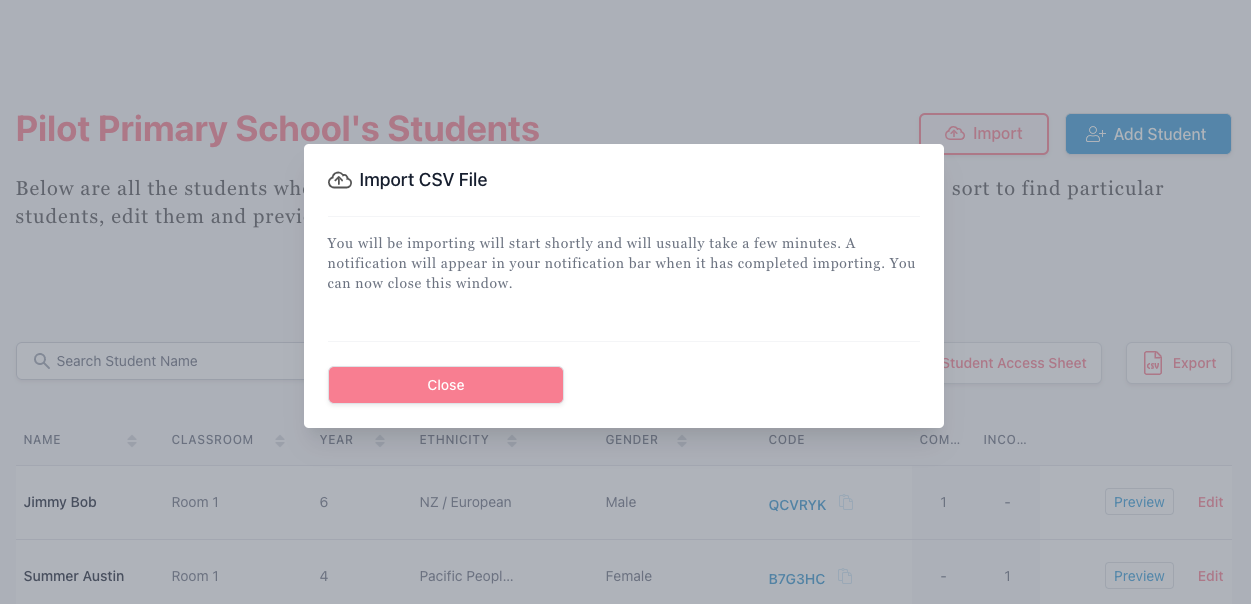
If the data looks correct, click the red Continue Import. Your import will now start, and a message will appear that your import has begun. Your import will be done in the background, so it is safe to close the modal dialogue or even browse to another website. When your import is complete it will be displayed in your notification bar.