
Adding a Staff Member
To add a new staff member, click the blue Invite Employee button on the right of the page header. A slide over modal dialogue will appear. A staff member requires a first name, last name and email address to be filled in (a) below.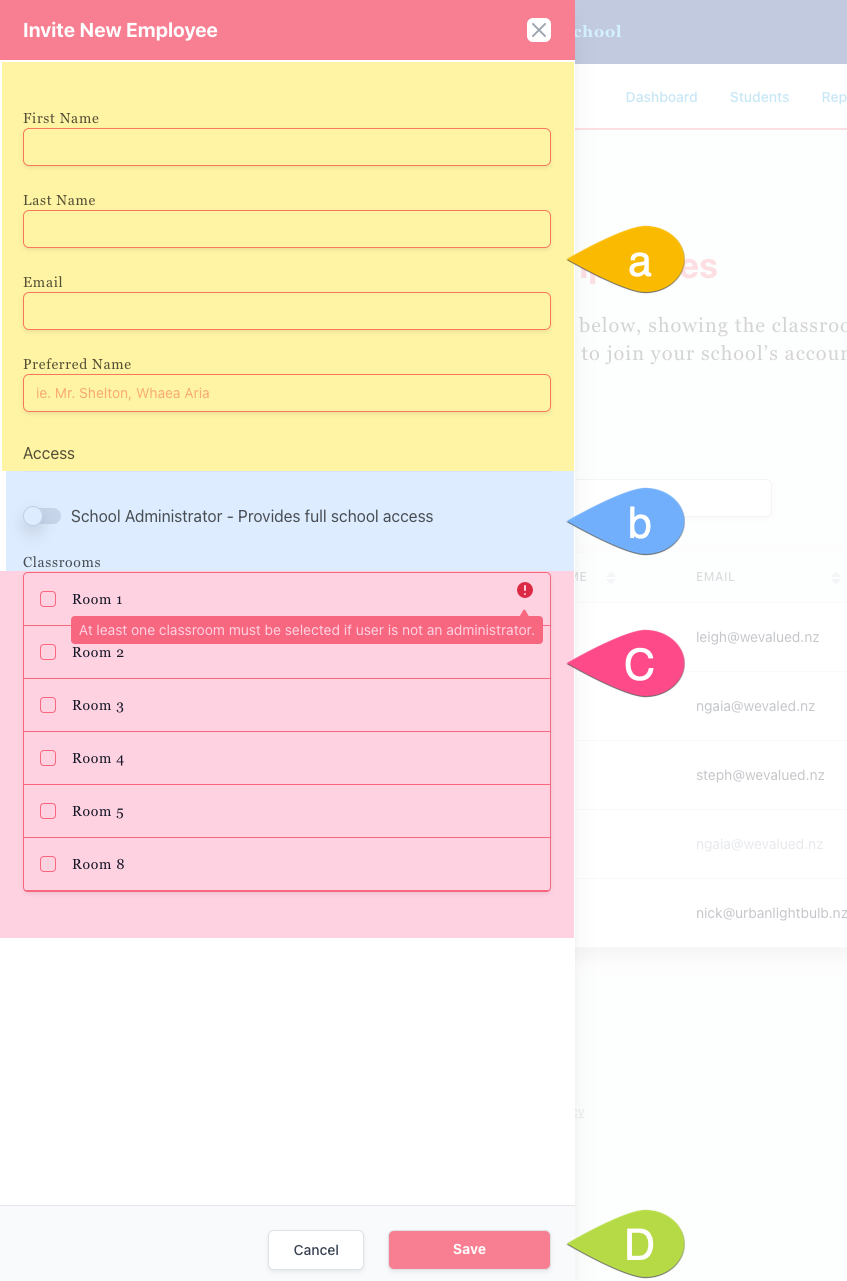 A staff member can either be assigned as an Administrator, providing full access to all classrooms and the school account, or provide access to individual classrooms. To make an employee a administrator, toggle the 'School Administrator' button to the on position (b). If the school employee is not to be a school administrator, they must have at least one classroom selected (c) before they can be saved.
To finalise, click save (d) where the page will be refreshed.
An invitation email will be sent to the staff member using the email specified above and should arrive within a few minutes. Inside the email, the staff member will be able to click Join. (This link will expire in 3 days, however, after expiring, the school administer can resend the email after 1 hour of the last invite being sent - and will appear next to their name when viewing all staff members).
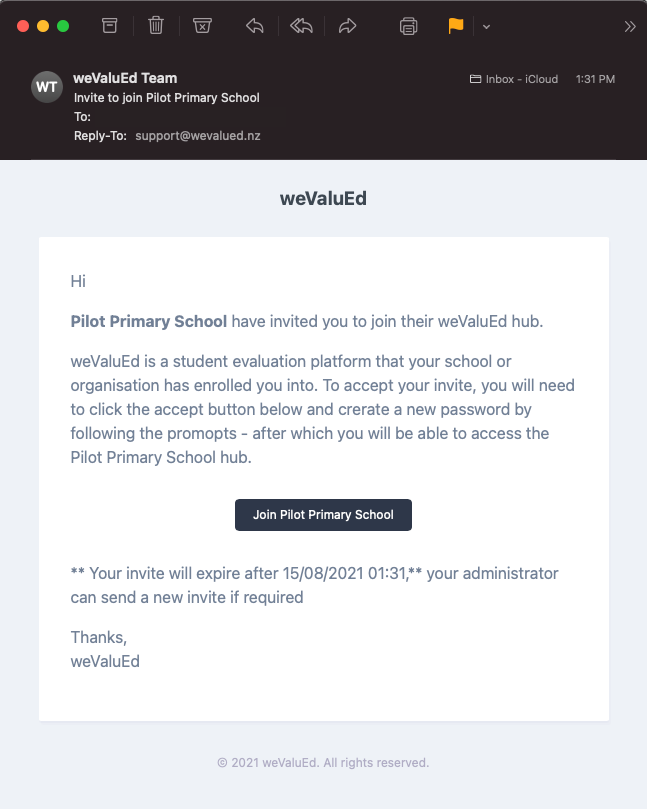
When the link has been clicked, the employee will be asked to set up their account by typing in their desired password and confirming their password. After these details have been completed, the employee has been setup in full - they will be redirected to their dashboard.

Editing & Deleting a Staff Member
A school administrator can edit any staff member by clicking the edit button. You can toggle full administration rights on or off, and add access to the classrooms they can access. To delete a user, click Delete on the bottom left of the slide over dialogue. A confirmation box will appear asking if you really wish to delete the staff member. This change cannot be undone.